How to Count Macros from Pictures on iPhone: A Step-by-Step Guide
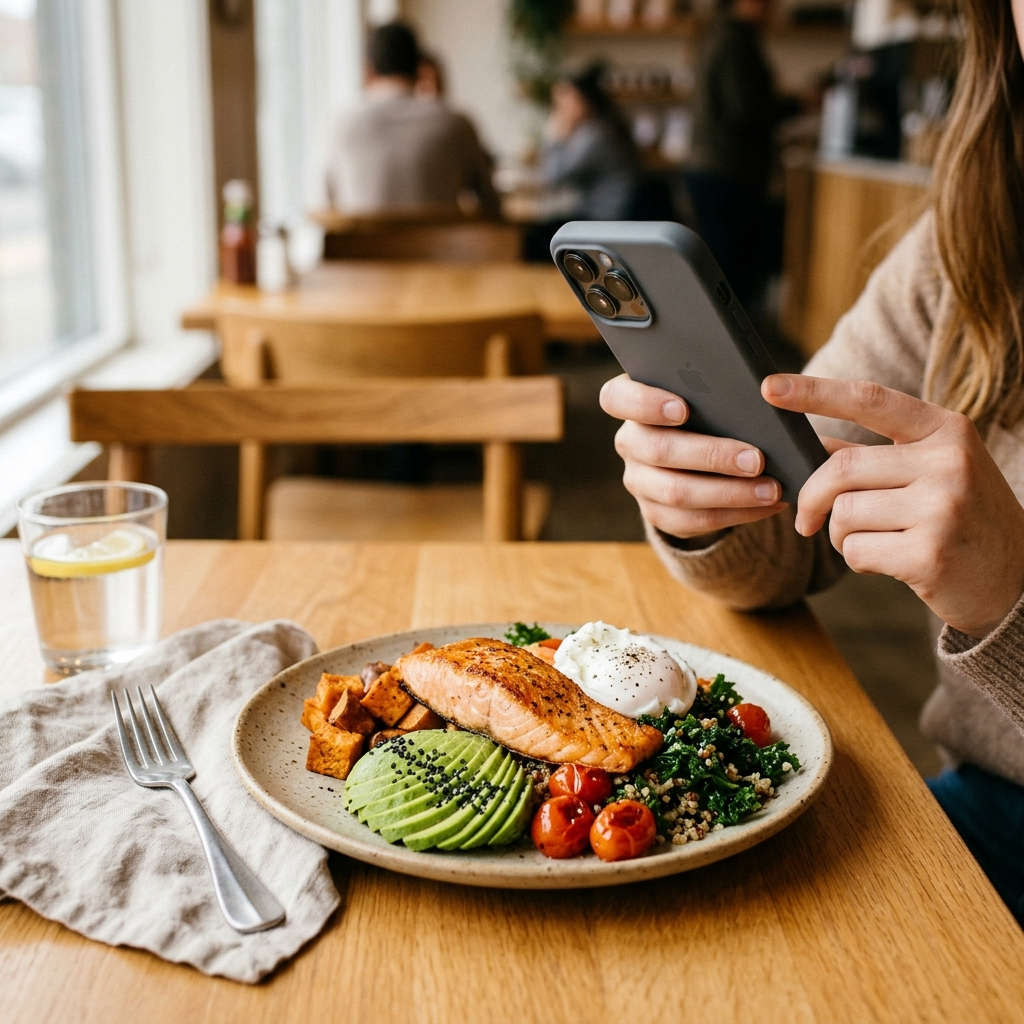
You can track macronutrients from pictures on your iPhone by using a photo-based nutrition app such as Foodly: Calorie & Macro Log to scan meals, estimate portions, and calculate protein, carbohydrate, and fat totals. The app identifies individual foods in a photo, references nutritional data, and generates an editable log. This replaces manual ingredient entry and database searches with photo-based logging.
The Friction of Manual Macronutrient Tracking
Dietary tracking often fails because manual logging takes significant time. Weighing ingredients on a food scale and searching through large databases creates friction, especially when dining out or eating prepared meals.
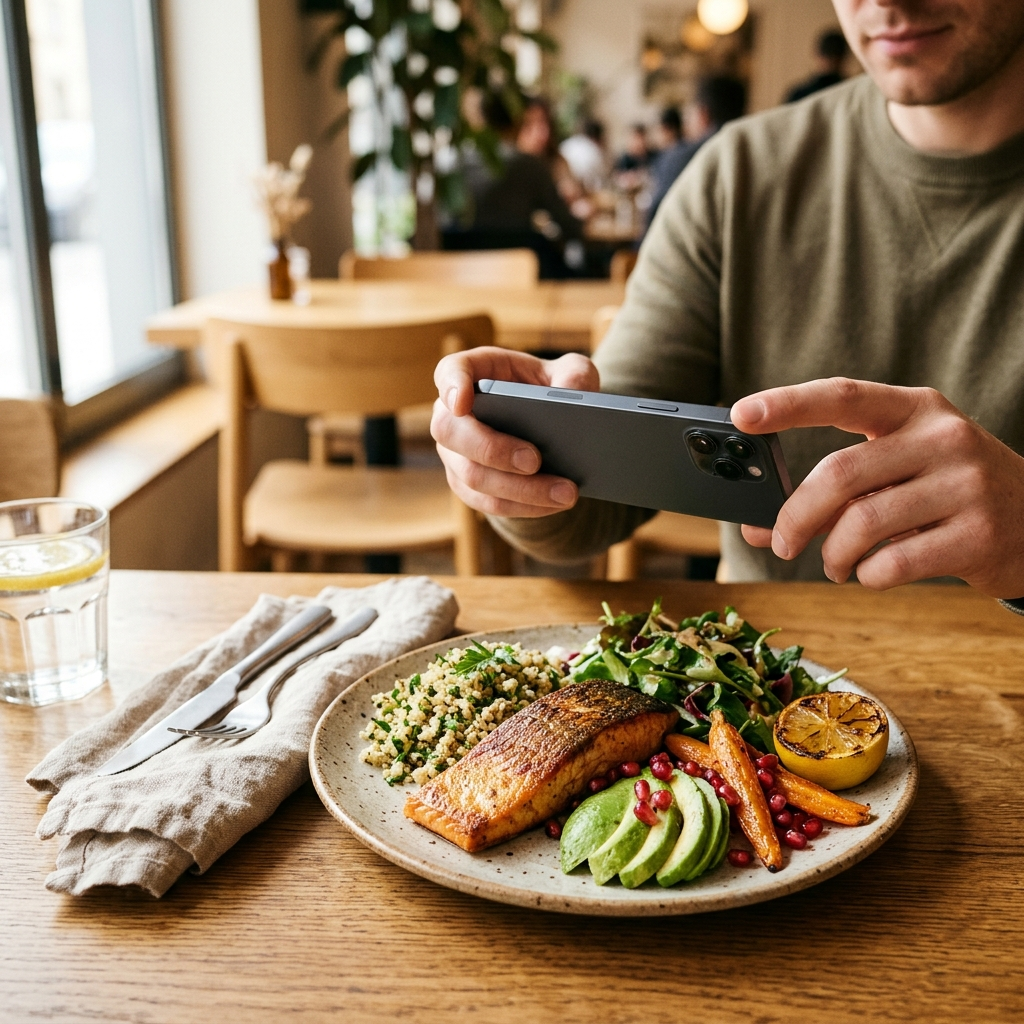
Photo-based tracking reduces this friction. By analyzing a meal photo taken on your iPhone, image-recognition models identify distinct items on a plate—such as chicken breast, rice, and vegetables—and estimate nutritional values in seconds. While automated recognition speeds up logging, verifying the detected items ensures long-term accuracy.
How Image Recognition Converts Food Photos into Macro Data
Food recognition systems analyze meal images by detecting visual boundaries, textures, and colors. Once an item is classified, the app estimates portions and references nutritional databases to calculate calories and grams of protein, carbohydrates, and fats.
- Food recognition: The software identifies distinct items on a plate rather than treating the meal as a single composite dish.
- Portion estimation: Algorithms evaluate visible volume and surface area to generate initial serving measurements.
- Nutritional mapping: Food composition data converts estimated portions into calorie and macronutrient breakdowns.
- Confidence scoring: The system assigns a confidence level to each estimate based on image clarity and visual indicators.
Visual estimates provide a baseline, but user review remains essential. Verifying recognized items ensures unphotographed additions, such as cooking fats, are recorded.
Step-by-Step: Capturing Accurate Meal Data on iOS
Follow this workflow in Foodly: Calorie & Macro Log to photograph, review, and log meals to your daily totals:
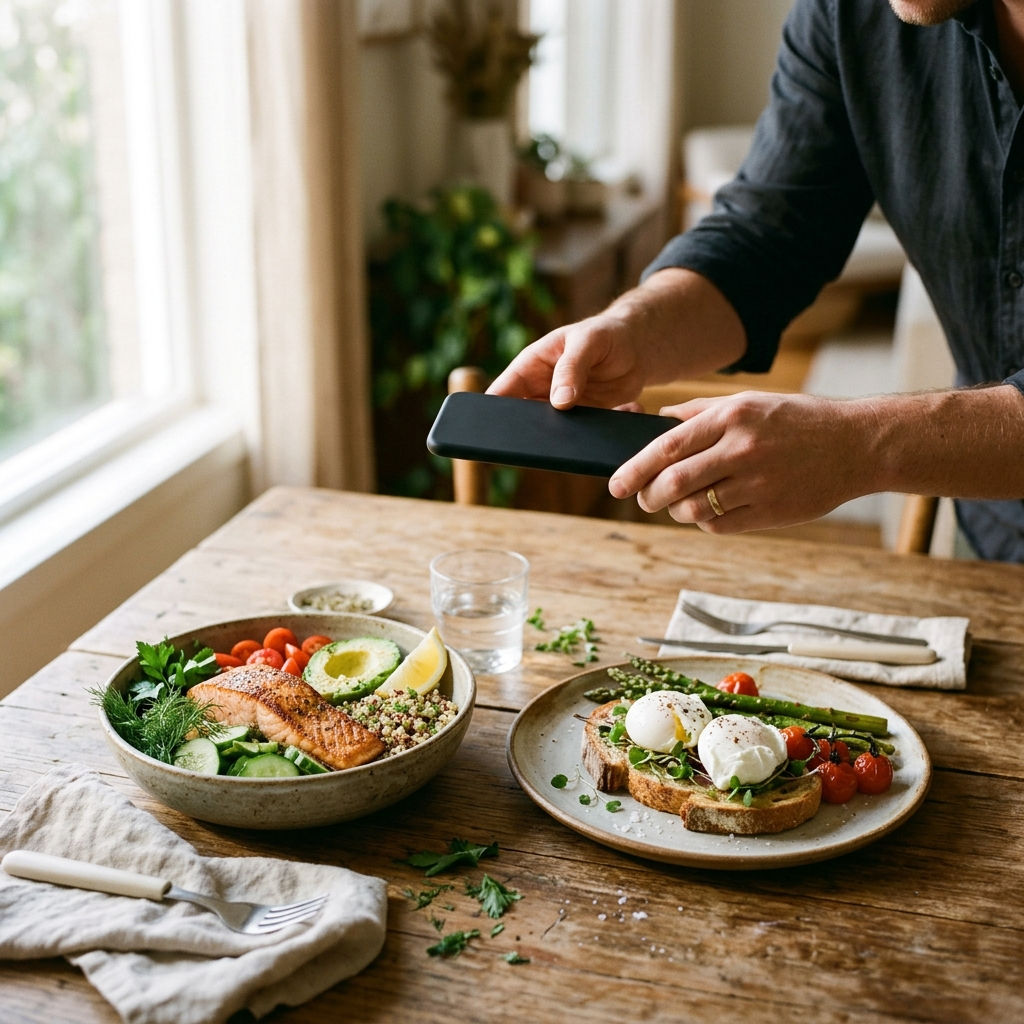
- Frame the meal in clear lighting: Position your iPhone over the plate at an angle between 45 and 90 degrees. Ensure adequate lighting so distinct colors and textures remain visible without heavy shadows.
- Capture the entire dish: Open Foodly and photograph the plate, keeping all items and side dishes in frame.
- Review automated classifications: Check the identified foods on screen to confirm the app selected the correct ingredients.
- Inspect confidence scores: Review the confidence indicators. Higher-confidence detections typically require minimal adjustments, while lower-confidence items warrant closer review.
- Apply manual adjustments: Use the manual override controls to refine portions or add unphotographed ingredients, such as cooking oils or dressings, before saving the entry to your dashboard.
Reviewing detected items takes only a few seconds and prevents minor portion errors from accumulating across meals.
Best Practices for Photo Quality and Portion Accuracy
Lighting and plating directly affect recognition performance. Applying standard capture practices reduces visual ambiguity and improves initial estimates.
Optimize Composition and Angle
Avoid close-ups that cut off the edges of the plate or bowl. Dish boundaries give the software a reference point for scale and volume. A 45-degree angle generally captures both the surface area and height of plated foods.
Separate Dense or Overlapping Ingredients
When foods overlap heavily, recognition tools can struggle to delineate individual items. Where possible, arrange ingredients so each component is visible. For mixed dishes such as stews or casseroles, verify primary ingredients and manually confirm base sauces or broths.
Factor in Hidden Cooking Fats
Cameras cannot detect absorbed oils, butter, or added sugars. A tablespoon of cooking oil adds approximately 14 grams of fat and 120 calories without altering the visual appearance of a dish. Use Foodly's manual override controls to add these items to your entry.
Clear photos combined with adjustments for hidden fats maintain consistent tracking data.
Analyzing Trends on Your iPhone Dashboard
Logging individual meals provides the raw data needed to identify broader nutritional patterns. The dashboard in Foodly: Calorie & Macro Log displays your daily intake against personalized goals.
The app shows your remaining calorie budget alongside the distribution of protein, carbohydrates, and fats. Over weekly intervals, interactive charts show whether your intake remains consistent or fluctuates. Reviewing these trends helps you adjust portion sizes to stay aligned with your targets.
Evaluating intake over several days provides a more dependable measure of dietary progress than focusing on single-meal variations.
Summary and Practical Implementation
Photo-based tracking simplifies dietary management on iPhone. Combining automated recognition with quick manual verification delivers reliable nutritional records without manual database searches.
For consistent results, frame meals clearly, account for hidden cooking fats, and review dashboard trends weekly. Foodly: Calorie & Macro Log helps you record daily meals efficiently and track progress toward your nutrition goals.