How to Digitized Shoebox Receipts Fast: A Step-by-Step System
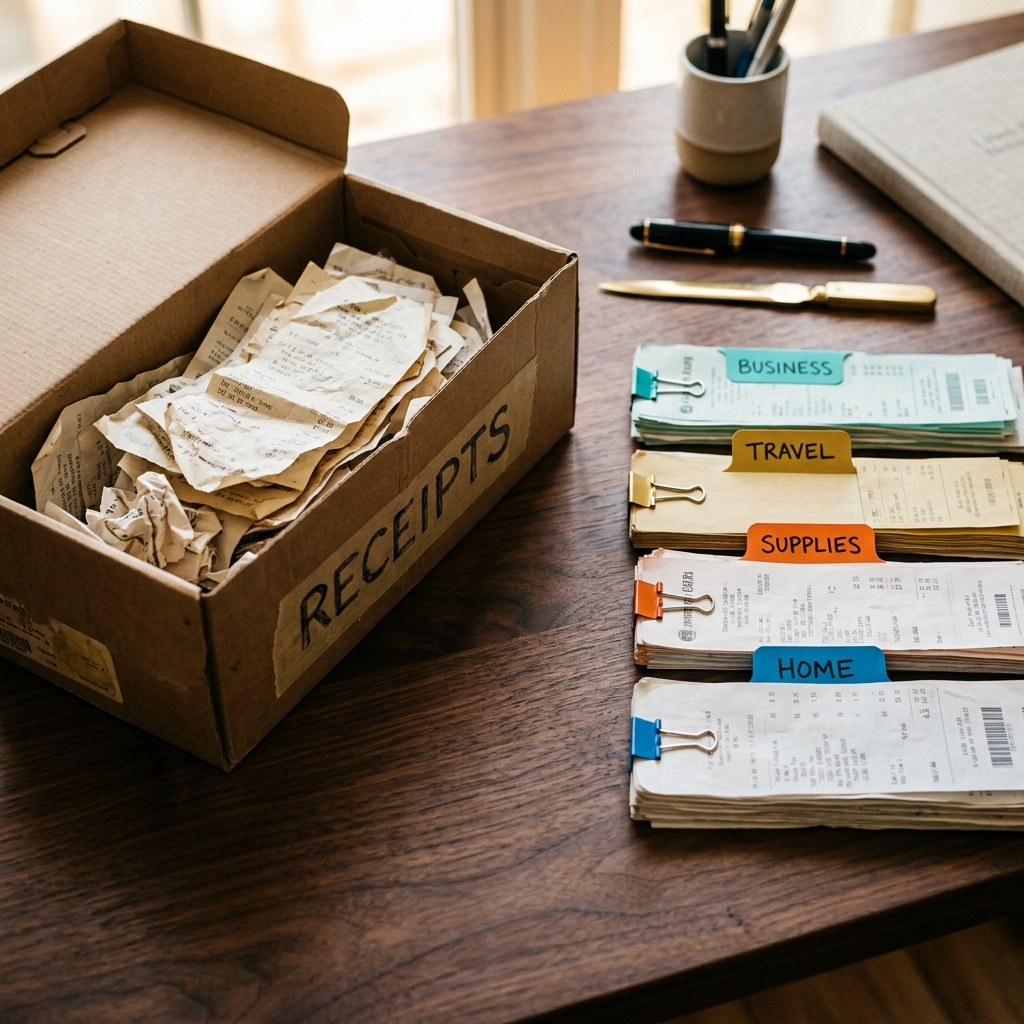
Digitizing a shoebox full of paper receipts quickly requires batching documents by physical size, using high-throughput mobile capture or dedicated feed scanners, and utilizing optical character recognition (OCR) to extract metadata automatically. By establishing standard naming conventions and standardizing your intake pipeline, individuals and accounting teams can process hundreds of physical receipts in under an hour without manual data entry.
The True Cost of Unprocessed Paper Receipts
Accumulating paper receipts in physical storage creates significant audit vulnerabilities and tax compliance risks. Thermal paper degrades over time, often rendering transaction amounts, vendor details, and dates unreadable within six to twelve months. When tax season arrives or an enterprise audit occurs, missing or faded documentation forces businesses to forfeit legitimate tax deductions.
Beyond compliance risks, physical storage obscures cash flow visibility. Unprocessed receipts delay expense reconciliation, leading to inaccurate financial reporting and miscalculated profit margins. Establishing a digital intake workflow eliminates these blind spots while reclaiming physical office space.
- Takeaway: Physical paper receipt storage increases audit risk due to thermal fading and creates financial blind spots through delayed reporting.
Phase 1: Pre-Sort and Organize Physical Receipts
Attempting to scan receipts individually as they come out of a container creates friction and slows processing times. Before opening any scanning software, organize physical receipts by size and substrate type. Group full-page receipts, standard register slips, and small fragile stubs into separate piles.
Flatten crumpled receipts and smooth out folded edges. For extremely curled thermal paper, gently tape the edges to a blank sheet of white printer paper. Grouping similar sizes together allows continuous scanning without needing to adjust scanner guides or camera angles repeatedly.
- Sort receipts into three size categories: full page, standard register width, and small stubs.
- Flatten all items and repair tears using matte document tape if text is obscured.
- Discard non-deductible items such as duplicate credit card slips that lack itemized details.
- Takeaway: Pre-sorting receipts by physical dimension speeds up processing and minimizes hardware jams or camera refocusing delays.
Phase 2: Choose the Right Hardware Capture Method
Selecting appropriate capture hardware depends entirely on document volume and frequency. Mobile device camera capture works best for low-to-medium volumes (under 100 receipts), whereas desktop document scanners with automatic document feeders (ADF) excel at processing backlog shoeboxes containing hundreds of items.
When using a smartphone camera, ensure high contrast by placing receipts on a flat, dark surface under bright ambient light. Angle lighting to prevent strong shadows across the receipt text. For high-volume scanning, dedicated document scanners configured with carrier sheets protect delicate or non-standard receipts from feeding errors.
Optimizing Mobile Capture Settings
If capturing via smartphone, enable auto-edge detection and automatic capture modes within your document camera app. Maintain a 90-degree overhead angle relative to the document surface. Ensure lighting is uniform to prevent glare on glossy thermal paper.
- Takeaway: Match capture hardware to transaction volume, using mobile auto-capture for smaller batches and ADF scanners for large legacy backlogs.
Phase 3: Automate Metadata Extraction with OCR
Manual data entry of transaction dates, merchant names, tax subtotals, and final amounts negates the speed of digital capture. Modern document intake workflows rely on Optical Character Recognition (OCR) driven by machine learning to parse unstructured text into structured database records automatically.
High-quality OCR systems identify key-value pairs across diverse receipt layouts without requiring manual template creation. Once extracted, data points map directly into accounting categories, vendor fields, and tax line items, reducing human input to simple validation rather than manual typing.
- Takeaway: Automated OCR transforms unstructured image files into searchable, categorized accounting data without manual keystrokes.
Phase 4: Standardize Document Archiving and File Naming
A digitized receipt collection is only useful if individual files remain searchable and audit-ready. Implement a standardized file-naming convention for all exported image files or PDFs. A reliable format combines transaction date, vendor name, and total amount: YYYY-MM-DD_Vendor_Amount.pdf.
Store digital files in secure cloud repositories featuring redundancy and strict access controls. Maintain consistent directory structures sorted by tax year and broad expense category. Ensure your cloud storage vendor complies with local tax authority requirements for digital document preservation.
- Apply standard naming formats immediately upon capture or automated export.
- Organize files into structured directories divided by year and financial category.
- Enable automated cloud backups to prevent data loss from local device hardware failure.
- Takeaway: Consistent naming rules and structured cloud backups guarantee audit compliance and instant document retrieval.
Maintaining a Zero-Paper Expense Workflow
Preventing future receipt backlogs requires establishing a daily or weekly intake routine. Process physical receipts immediately upon returning from business travel or store purchases rather than allowing items to accumulate in physical storage containers.
To maintain long-term organization without friction, modern teams use intelligent capture applications to scan receipts, track expenses, and interact directly with financial data, ensuring receipt backlogs are eliminated.
- Takeaway: Establish immediate capture routines to prevent physical receipt accumulation and keep expense management fully up to date.
Frequently Asked Questions
The fastest method is using a desktop sheet-fed scanner with an Automatic Document Feeder (ADF) along with receipt carrier sheets, or using a mobile app with continuous batch auto-capture on a high-contrast background.
Yes, tax authorities including the IRS accept digital receipts provided the images are legible, accurately represent the original document details, and are stored securely.
If thermal paper is faded, adjust camera contrast or scanner threshold settings during capture. Gently flattening curled receipts on a dark background improves OCR accuracy.