How to Digitize Paper Receipts on iPhone and Android in 2026
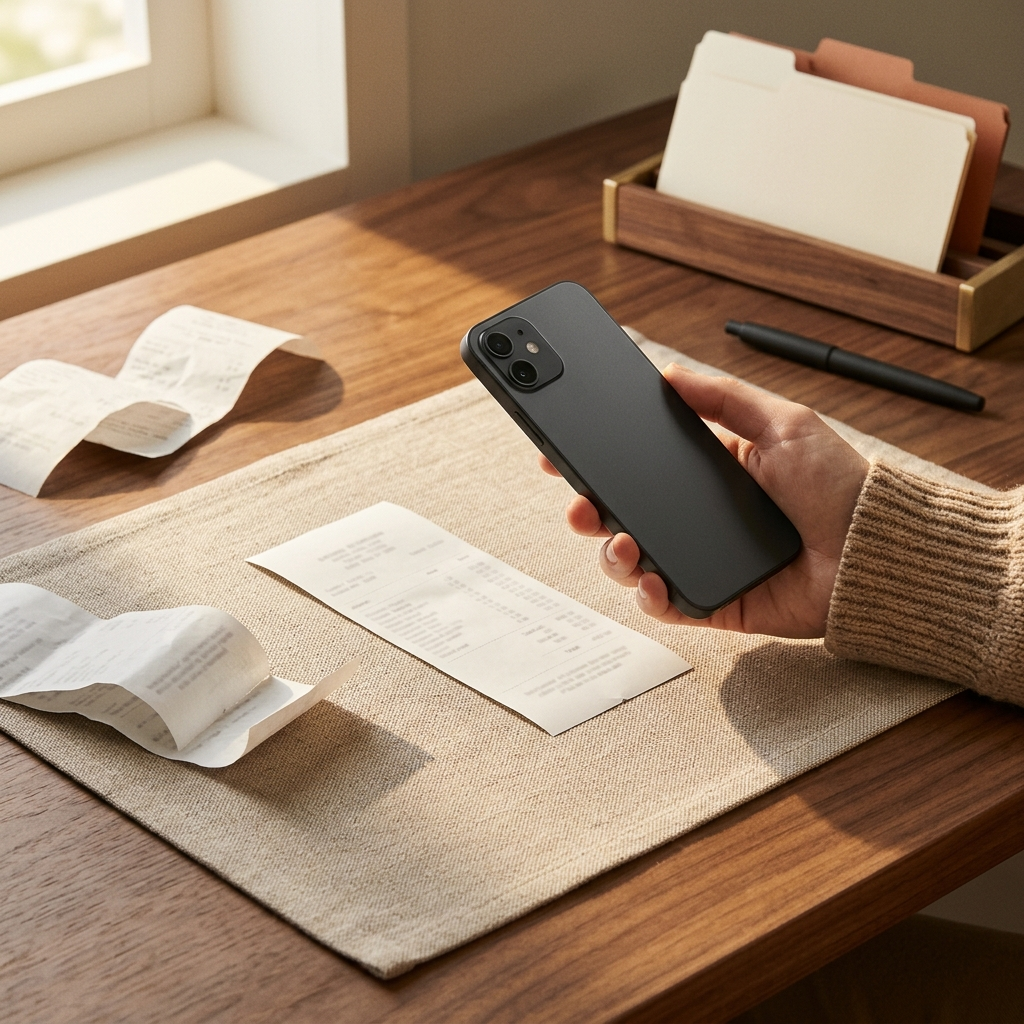
Digitizing paper receipts on iPhone and Android involves capturing a clear image, verifying extracted details, and filing the record into an organized system. A scanner app such as Receiptly: Receipt Scanner streamlines this process by recognizing merchant names, transaction dates, and totals directly from camera captures. Regular digitization eliminates paper clutter and keeps personal or household records accurate for future review.
The Practical Risks of Retaining Paper Receipts
Physical receipts present several practical problems for personal recordkeeping. Most retail and service receipts are printed on thermal paper, which degrades over time. Exposure to heat, light, or everyday friction can render printed transaction details unreadable within months.
Paper documentation also complicates purchase verification. Sifting through boxes, folders, or wallets takes time and increases the risk of overlooking tax deductions or warranty receipts. Without a structured archive, tracking monthly expense trends requires tedious manual calculation.
Takeaway: Physical receipts deteriorate and are difficult to organize, making prompt digitization practical for reliable expense tracking.
Capturing Clear Receipt Images on Mobile Devices
Automated data recognition depends directly on image quality. Both iOS and Android cameras produce better scans when you account for lighting and background contrast.
- Flatten the paper: Smooth out heavy creases or curled edges before placing the receipt on a flat surface.
- Ensure contrast: Place light-colored receipts on a dark, non-reflective surface so document edges are clearly defined.
- Control lighting: Avoid direct overhead lighting that casts harsh shadows or washes out thermal print. Diffused indoor lighting or indirect daylight works best.
- Hold the camera steady: Position your smartphone directly above the receipt, holding the frame parallel to the surface to avoid perspective distortion.
Takeaway: Proper framing, steady alignment, and clear background contrast improve automated text recognition on mobile devices.
Reviewing and Correcting Extracted Data
Mobile receipt scanners parse camera captures to identify core transaction details automatically. Receiptly extracts key fields including the merchant name, purchase date, and total amount. However, automated extraction can make mistakes when processing irregular layouts, handwritten notes, or faint thermal printing.
Always review the scan after capture. Open the extracted record and compare each field against the original receipt. Confirm that sales tax or tips are reflected correctly in the final total, and ensure the date matches when the transaction occurred rather than the day of scanning.
- Confirm the merchant name matches the vendor on the slip.
- Verify that decimal places in currency totals match the paper receipt.
- Correct misread characters caused by creased paper or faded ink before saving.
Takeaway: Check automated extractions against the source receipt before saving to maintain accurate financial records.
Structuring Saved Records with Categories and Search
A digital archive is only useful if records are easy to retrieve. After verifying transaction values, assign each entry to a category, such as groceries, dining, utilities, transportation, or office supplies. Consistent categorization organizes individual entries into structured groups.
Receiptly includes a searchable receipt history that allows you to find saved records by keyword or merchant name. When you need to check past appliance prices or confirm a recurring charge, searching by name or keyword avoids manual browsing across months of files.
Takeaway: Categories and searchable archives make finding specific purchase records fast and straightforward.
Analyzing Spending Trends with Summaries and Charts
Digitizing receipts also helps you monitor overall spending patterns. Instead of totaling paper slips at the end of each month, organized digital entries generate structured overviews.
In Receiptly, you can review spending charts and monthly summaries to see how expenses are distributed across categories over time. Checking these summaries helps identify unexpected cost increases, track regular spending patterns, and support routine personal budgeting.
- Check monthly summaries to see which categories account for the largest share of spending.
- Use spending charts to compare month-over-month changes in discretionary expenses.
- Spot seasonal expense shifts to keep personal budgets on track.
Takeaway: Monthly summaries and spending charts turn individual receipt scans into clear overviews of your expenses.
Building a Sustainable Daily Scanning Habit
Receipt digitization works best as a consistent routine rather than an occasional backlog project. Letting receipts accumulate makes scanning and verifying records more time-consuming.
Set a simple scanning routine. Scan receipts right after a purchase, or dedicate a few minutes at the end of the day to process new slips. After verifying the details and assigning a category, save the entry and store or discard paper copies according to your personal recordkeeping needs.
While core capture and organization tools are readily available, some features in Receiptly require an in-app purchase. Review available features and terms in the app before upgrading.
Takeaway: A brief daily scanning routine prevents backlogs and ensures your expense records remain current and organized.