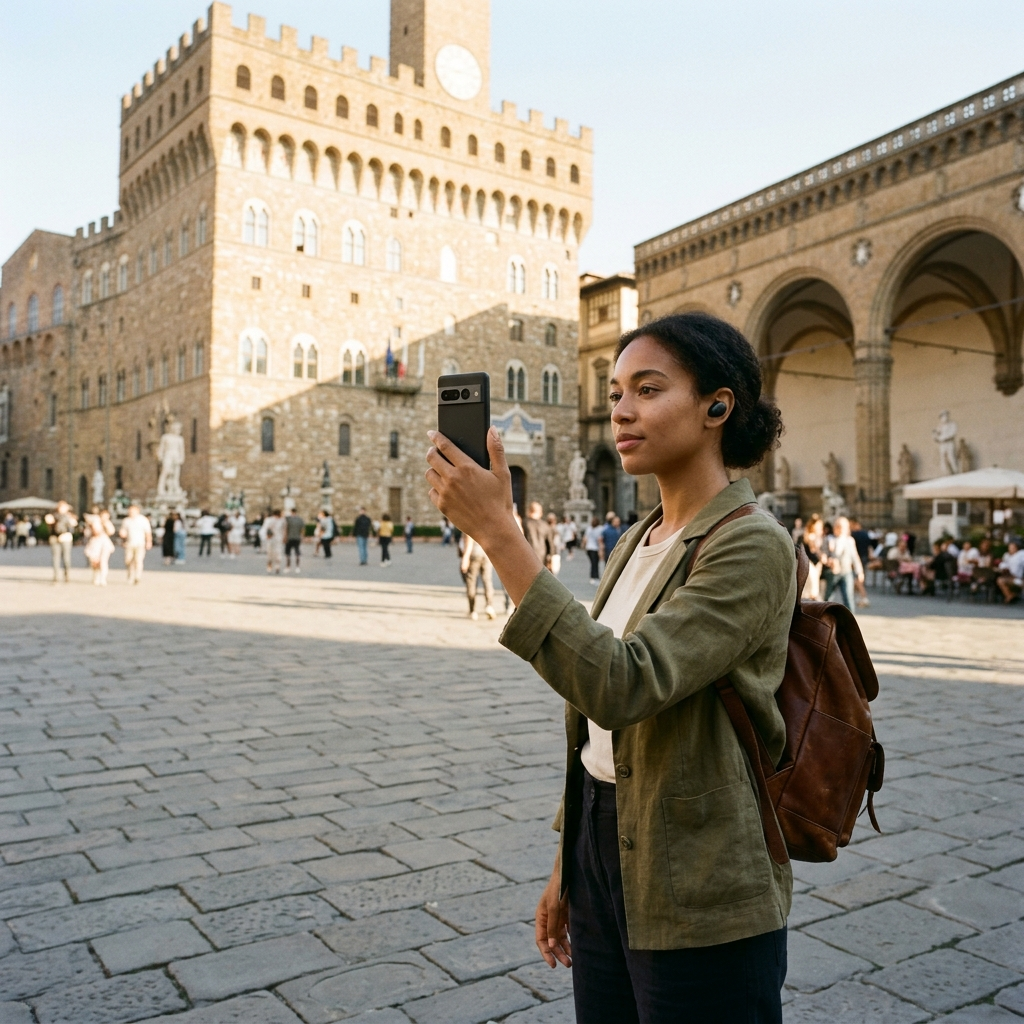
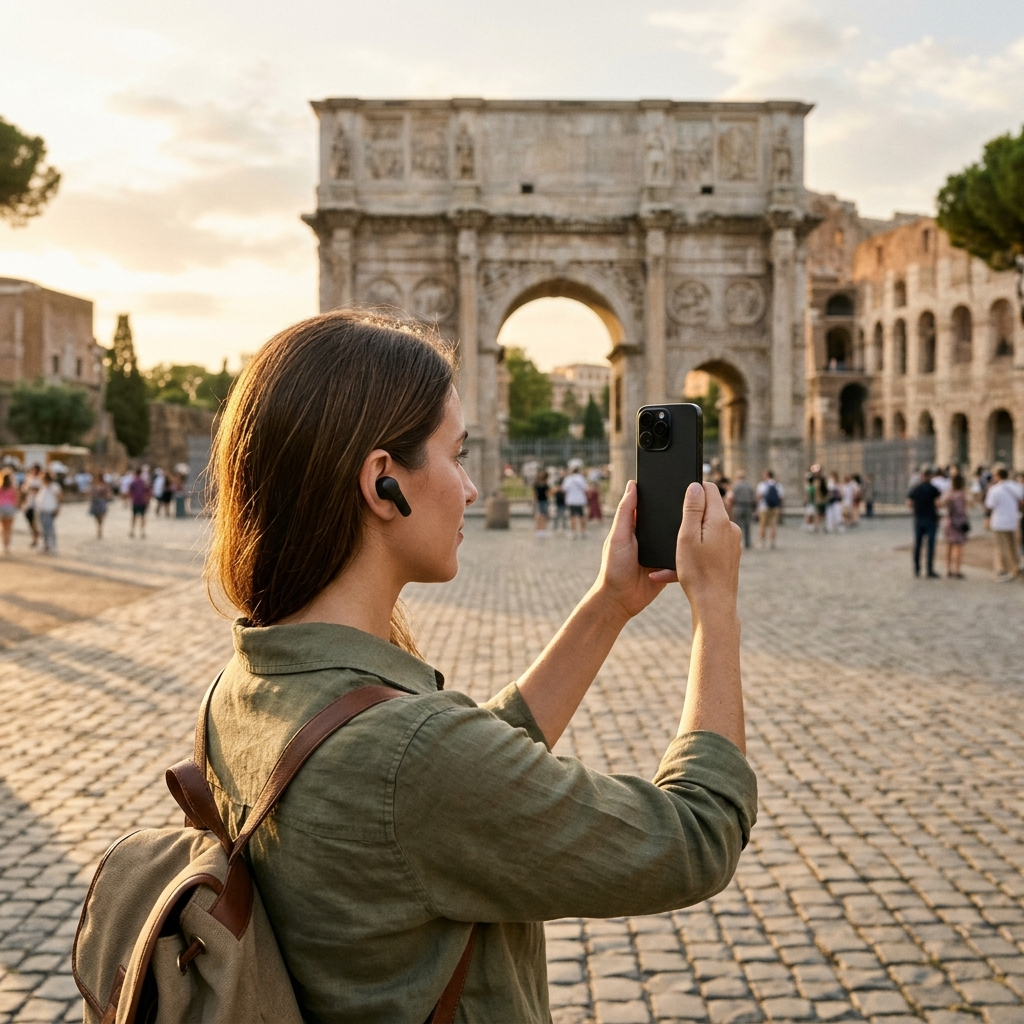
How to Identify Monuments and Statues Using Your Phone
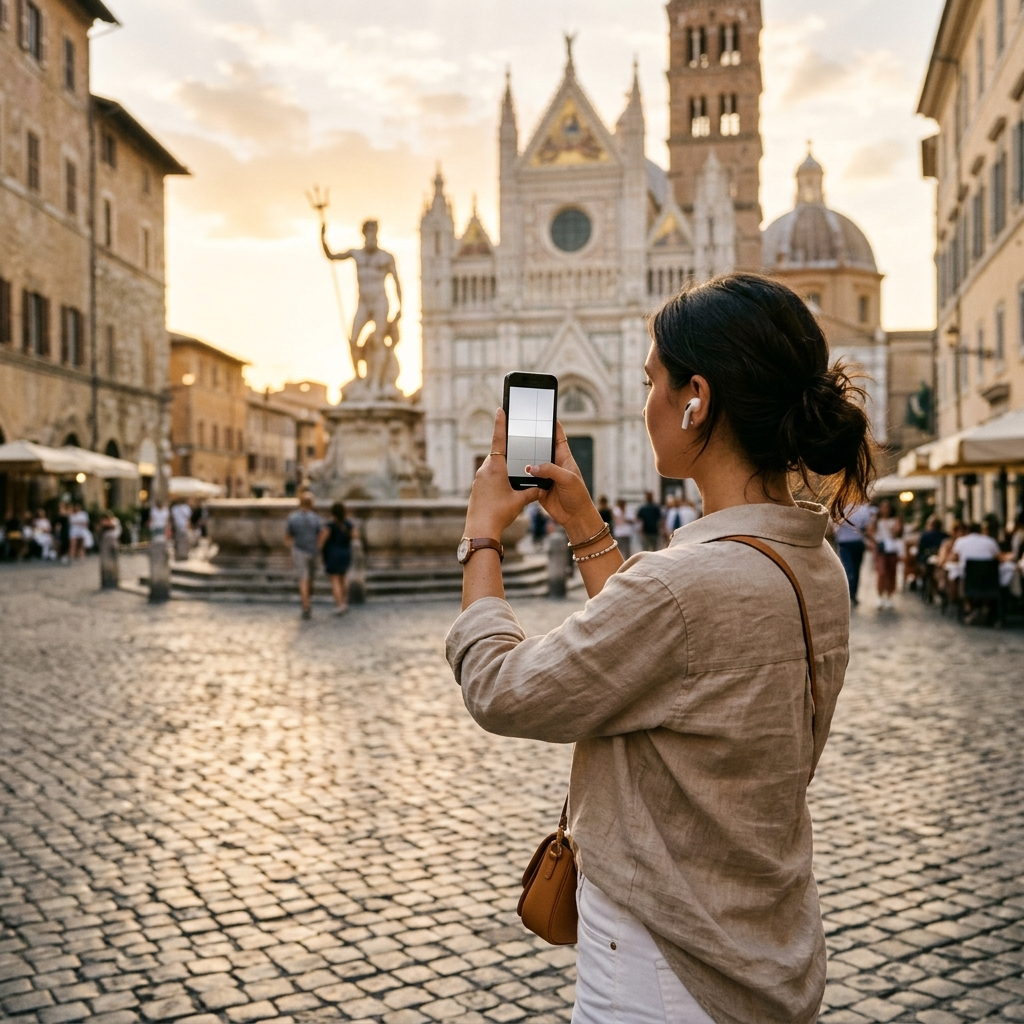
You can identify unfamiliar monuments and statues with your smartphone by capturing a photo or selecting a recorded video clip in an AI-powered visual guide like Aitour: AI Travel Guide. These visual recognition tools match captured images against a catalog of points of interest, giving you immediate access to place descriptions, audio narrations, and background information.
The Challenge of Identifying Public Art and Historical Sculptures
Historic squares, parks, and civic centers feature thousands of commemorative statues, memorials, and sculptures. Many lack readable plaques, while other markers have worn down from exposure or sit out of reach on high pedestals. Foreign inscriptions can also make on-site identification difficult.
Typing vague descriptions into a web browser—such as "bronze equestrian statue in town square"—often returns hundreds of unrelated landmarks across different cities. Image-based recognition simplifies this process by letting the object itself serve as your visual search query.
How Visual Recognition Identifies Monuments from Images
Landmark recognition technology compares photos against indexed cultural catalogs. When you photograph a statue, recognition algorithms evaluate distinctive structural and spatial characteristics to find a match, even across different seasons, lighting conditions, or pedestrian activity.
Key Features Evaluated During a Scan
- Silhouette and Pose: Anatomical stance, posture, garments, or unique elements like horseback figures and held objects.
- Pedestal and Base Structure: Dimensions, plinths, and architectural bases that distinguish specific monuments from replicas.
- Material Characteristics: Visual surface signatures typical of weathered bronze, carved marble, granite, or sandstone.
- Surrounding Setting: Prominent background facades, arches, and adjacent civic structures that help pinpoint the location.
Matching these distinct visual features against a structured points-of-interest catalog helps verify identity and connects you directly to relevant place records.
Step-by-Step Guide: Identifying Statues and Monuments with Aitour
Aitour's AI Landmark Scanner is designed to help travelers and city explorers identify unfamiliar sites on location. Follow these steps to scan and explore monuments:
- Frame Your Subject: Step back to include both the sculpture and its pedestal in the frame, keeping lighting balanced when possible.
- Scan via Photo or Video: Open the AI Landmark Scanner in Aitour and take a photo. If you recorded footage earlier, select the video from your gallery; Aitour identifies the landmark using the video thumbnail.
- Review the Matched Record: View the matched point-of-interest page to read descriptions and view available images.
- Listen to the Narration: Tap the listen button to hear the description read aloud with text-to-speech.
- Ask AI for Details: Use the Ask AI feature to ask specific questions about the monument's background, history, or purpose.
This workflow delivers factual context in seconds so you can spend less time searching and more time observing the site.
Techniques for Scanning Difficult or Obscured Monuments
Crowds, foliage, and harsh lighting can complicate photo capture in public spaces. A few adjustments help produce clearer scans:
- Clear Foreground Obstructions: Angle your phone slightly upward from a lower vantage point to use the open sky as a clean backdrop and keep pedestrians out of the frame.
- Focus on Distinctive Details: If scaffolding or trees block part of the monument, frame identifiable features such as a figure's face, carried emblems, or unique pedestal reliefs.
- Manage Backlighting: If strong midday sunlight casts deep shadows over the sculpture, shift your position by 45 degrees to capture clearer surface detail.
- Check Your Location on the Map: When visiting areas with several clustered monuments, consult the interactive map to verify your current position and review nearby markers.
Clear framing improves scan matching across varied outdoor environments.
Transforming Discovered Monuments into Curated Itineraries
Identifying a statue often leads to exploring the surrounding historic district. Rather than treating each scan as a one-time lookup, you can organize your discoveries into structured itineraries.
Aitour lets you save discovered places directly to your favorites and group them into named trips. You can reorder stops with drag-and-drop organization to plan efficient walking routes. The interactive Google Maps interface displays POI markers, quick previews, and your distance from each landmark to help you manage your time.
For structured exploration, you can also launch a voice-guided walking tour to hear narrated background information hands-free as you move between destinations.
Practical Checklist for On-Site Landmark Scanning
Keep these practical habits in mind during walking tours and city excursions:
- Keep Your Camera Lens Clean: Wiping away smudges ensures sharp edge definition for accurate visual matching.
- Check Offline Access: Confirm offline availability in the app before visiting areas with weak cellular coverage.
- Bring Earphones: Use lightweight headphones to listen to text-to-speech descriptions and audio tours comfortably in noisy public spaces.
- Save Discoveries to Trips: Organize identified monuments into named collections so you can review where you went after your visit.
These steps help your smartphone serve as an effective reference guide wherever you explore.
Summary
Mobile visual recognition tools remove the guesswork from exploring historical sites. By pairing camera input with comprehensive landmark catalogs, apps like Aitour provide immediate descriptions, audio narrations, and answers to your questions about public statues and monuments. With camera scans, interactive maps, and organized trip planning in one place, learning the history behind public art is straightforward and accessible.
Frequently Asked Questions
Yes. In Aitour, you can select a saved video from your device gallery, and the app recognizes the landmark from the video thumbnail.
Capture a clear photo showing the statue's silhouette, pose, and pedestal. Visual recognition tools match these structural features directly against a catalog of points of interest.
After identifying a landmark in Aitour, you can read the place description, listen to text-to-speech audio narration, or use the Ask AI feature to ask specific questions about the site.
Aitour includes offline functionality so you can continue exploring points of interest even when cellular connectivity is limited.