How to Hear the Audio History of Buildings While Walking: A Practical Guide
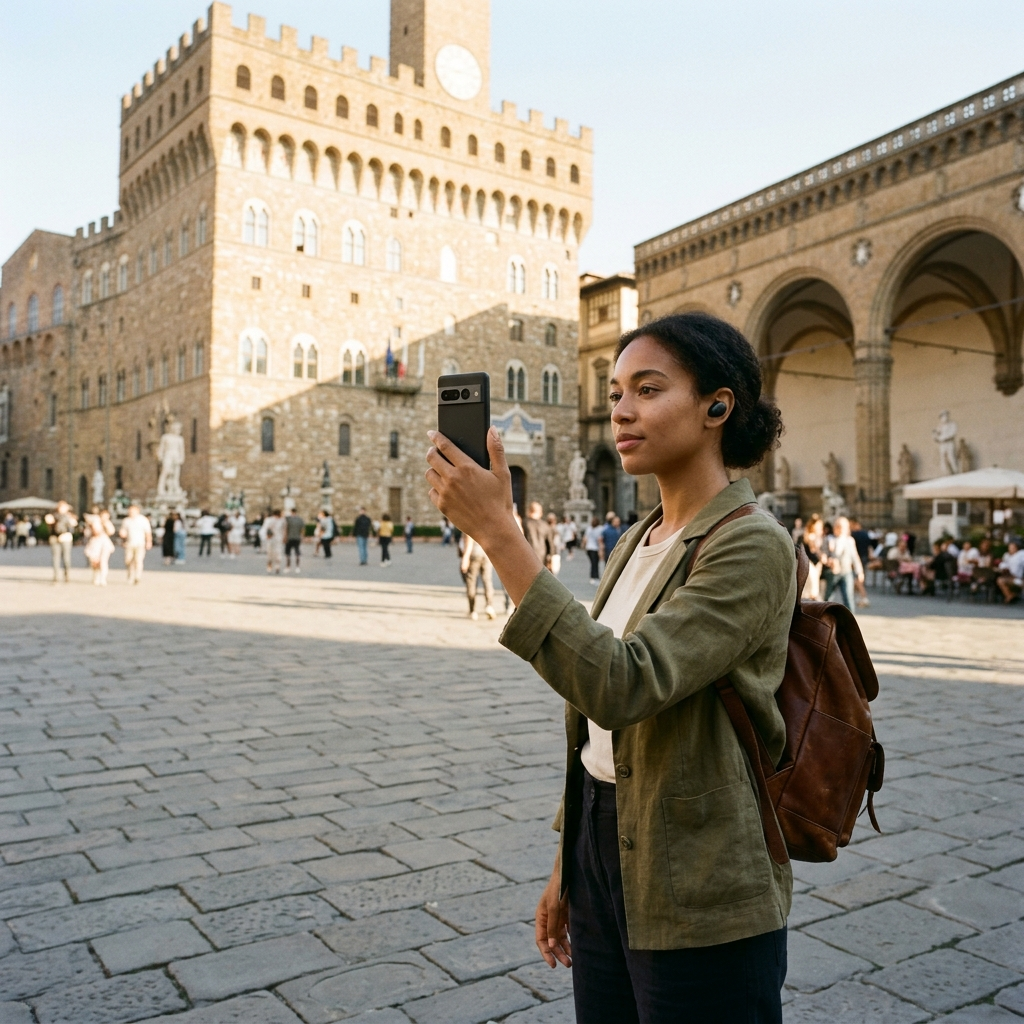
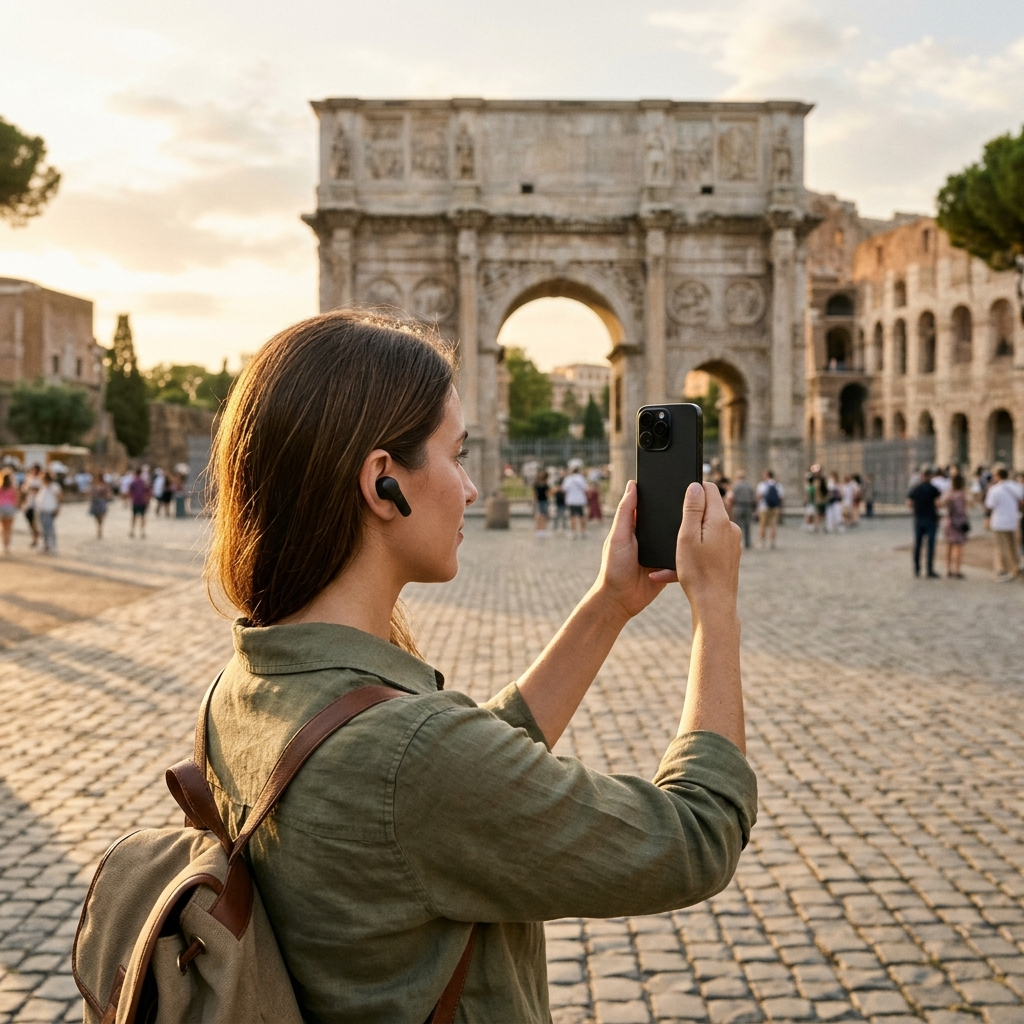
To hear the audio history of buildings while walking, use a location-aware mobile app like AI tour guide (Aitour) that pairs visual landmark recognition and interactive mapping with text-to-speech and voice-guided narration. Instead of stopping to read plaques or search the web on the street, you can scan a facade with your camera, select a nearby marker on an interactive map, or follow a hands-free narrated route. This lets you watch the architecture and pedestrian traffic while listening to historical context through headphones.
Why Traditional Architectural Exploration Disrupts the Walking Experience
Walking through a historic district or city center reveals dozens of notable facades, monuments, and civic structures, yet most buildings offer little context at street level. Plaques are often missing, weathered, or across busy intersections, leaving walkers with only a view of the exterior.
Researching buildings manually on foot interrupts your pace. Stopping on a crowded sidewalk to type partial addresses or architectural descriptions into a search engine pulls your attention away from your surroundings. Even when a search returns results, reading long articles on a phone screen in the street is inconvenient.
Audio narration solves this problem by separating information delivery from visual observation. When historical descriptions are read aloud, you can walk at a normal pace, examine structural details like cornices and stonework, and learn how a building was designed and used.
Three Ways to Trigger Building Audio History on Foot
Different walking scenarios call for different ways to access architectural audio. Whether you are wandering without a plan, curious about a single structure across a plaza, or following a set itinerary, AI tour guide supports three workflows for turning visual landmarks into spoken history.
1. Visual Recognition for Unmarked Landmarks
When you encounter a church, civic hall, or monument and do not know its name, text search rarely helps. Visual recognition connects seeing a structure with hearing its history.
With the AI Landmark Scanner in AI tour guide, you can take a photo of a landmark to identify it. The app uses AI-powered recognition to match your image to its catalog of points of interest and opens the corresponding place page. If you prefer to keep moving and review buildings later—or if you recorded a clip earlier—you can select a video from your gallery and recognize the landmark from its thumbnail.
2. Spatial Discovery via an Interactive Map
Historically significant buildings often sit a block off the main street or blend into commercial blocks. Relying only on what catches your eye from the main thoroughfare makes it easy to walk past notable sites.
The interactive Google Maps view in AI tour guide displays POI markers across your area alongside your current location. You can view all points of interest at a glance, tap markers for quick previews, and check the distance from your location. If you are walking in the evening, dark mode reduces screen glare while you check nearby markers before returning to audio.
3. Hands-Free Live Tour Guide Narration
For continuous listening without checking your phone at every corner, the Live Tour Guide feature provides AI-powered, voice-guided walking tours. Designed for hands-free exploration, this mode plays narrated tours as you move through an area. Every user gets a free trial to test voice-guided tours at their own walking pace.
Section Takeaway: Match your discovery method to your walk: use camera scanning for unfamiliar facades in front of you, the interactive map to locate nearby sites, and the Live Tour Guide for continuous hands-free narration.
Step-by-Step: How to Listen to Building Histories on Your Next Walk
Setting up an audio walking workflow takes only a few minutes before you start. Follow these steps to identify structures and hear their histories on the move.
- Prepare your audio and display settings: Connect headphones—keeping one ear open or using ambient mode to stay aware of traffic—and enable dark mode on the map if walking after dusk.
- Locate or scan your first building: Open AI tour guide and tap a nearby marker on the interactive map, search the catalog by name or category, or photograph the building with the AI Landmark Scanner.
- Open the POI details page: Check the place page to confirm the building using its images, description, and distance from your current location.
- Start audio playback: Tap Listen so text-to-speech reads the building's description aloud while you view the exterior.
- Ask follow-up questions: If the description mentions an architectural style, historical event, or builder you want to know more about, use Ask AI on the place page to get answers about that place.
- Navigate to the next structure: View the next point of interest on the map, use the navigation option to find your way, or start a Live Tour Guide session for hands-free walking.
Section Takeaway: Combining the Listen text-to-speech feature with Ask AI turns a written building description into an interactive audio briefing.
Planning a Custom Architectural Audio Route Before You Leave
Spontaneous discovery works for casual walks, but visitors to neighborhoods with many landmarks benefit from preparation. Organizing a route beforehand prevents backtracking and helps you cover key structures.
Use the Explore and Search tools in AI tour guide to browse the catalog of points of interest. You can run full-text searches across names, descriptions, and categories—such as specific periods or building types—and switch between grid and list views with thumbnails to preview each structure. Instant results and recent searches make it easy to compare buildings across a district.
Once you select the buildings you want to visit, organize your walking sequence:
- Save key structures: Add buildings to your Favorites collection as you browse the catalog to build a shortlist.
- Group buildings into named trips: Create a named trip—such as by neighborhood, morning walk, or architectural theme—and add your selected points of interest.
- Order your stops: Use drag-and-drop reordering in your trip list to arrange destinations in a logical geographic sequence.
- Share and manage: Share places with walking companions before the trip, and manage or delete trips when finished.
Section Takeaway: Building a named trip and reordering stops with drag-and-drop lets you focus on listening and observing once you arrive.
Field Best Practices for Uninterrupted Audio Walking
Urban environments present practical challenges for mobile apps, from weak cellular signals between tall buildings to crowded street crossings. A few habits help keep your audio tour uninterrupted.
- Use offline mode in dense districts: Historic city centers, stone arcades, and narrow alleys often weaken mobile data signals. AI tour guide works offline so you can keep exploring without an active connection.
- Use video thumbnails when you cannot stop for a photo: When walking with a group or crossing a busy plaza, stopping to frame a photo is not always practical. Capture a quick video while walking, then select it from your gallery later to identify the landmark from its thumbnail.
- Check the map at intersections: Use the map's marker previews and location refresh button while waiting at crosswalks, then start audio playback so your hands stay free along the block.
Section Takeaway: Offline access and gallery video recognition keep your walk moving when connectivity drops or sidewalks are crowded.
Start Exploring the Stories Behind the Streetscape
Listening to building histories while walking adds architectural context to a commute or sightseeing walk. By replacing manual web searches and street plaques with camera recognition, interactive POI mapping, text-to-speech playback, and voice-guided tours, you can focus on the structures around you. Open AI tour guide before your next walk, try the Live Tour Guide free trial, and listen to the history of the buildings along your route.
Frequently Asked Questions
Use the AI Landmark Scanner in the AI tour guide app to take a photo of the building, or select a video from your gallery to recognize it from the thumbnail. The app matches the image to its catalog of points of interest, opens the place details page, and lets you tap Listen to hear the description read aloud via text-to-speech.
Yes. AI tour guide includes a Live Tour Guide feature that provides AI-powered, voice-guided walking tours for hands-free exploration. You can also tap Listen on any point of interest page to have text-to-speech read the building's description aloud while you walk.
On any point of interest details page in AI tour guide, use the Ask AI feature to ask questions about the landmark and get answers about that place.
Yes. You can browse or search the catalog of points of interest, save places to your Favorites, create named trips, and reorder destinations using drag-and-drop to match your walking route. The app also works offline for use in the field.